The Workflows Board displays any workflow threads in which the user is a participant, including Conversations. Users can create new workflow threads from Discover reports or Present dashboards and include other users in those threads. When a user opens the relevant content item, those workflows are available to the user. However, it requires the user to know which content items (or data models) to open.
The Workflows Board provides an alternative entry point, by pooling all relevant conversations into a single interface and then allowing the user to work directly or allowing the user to jump to the relevant content items for both context and the ability to continue the workflow thread.
Workflows vs Conversations
Workflows in Pyramid are generic mechanics to annotate data points, hierarchy members, and reports. The workflow can then be used to attach some type of content or "payload." The workflows are open capabilities which developers can use to build their own mini workflow apps.
Conversations are a specific workflow type that allow users to write comments in conversation threads with other users. The conversation framework is included in the application out of the box.
The Workflows feature must first be enabled from the Admin console.
Workflows Feed
A notification is displayed for a user when they have any new unread messages on any of their workflow threads. If messaging is enabled, they may also get an email telling them to join a workflow.
Going into the Bulletin board, and then to the Workflow Board, users will see a list of current workflows on the left (red box below):
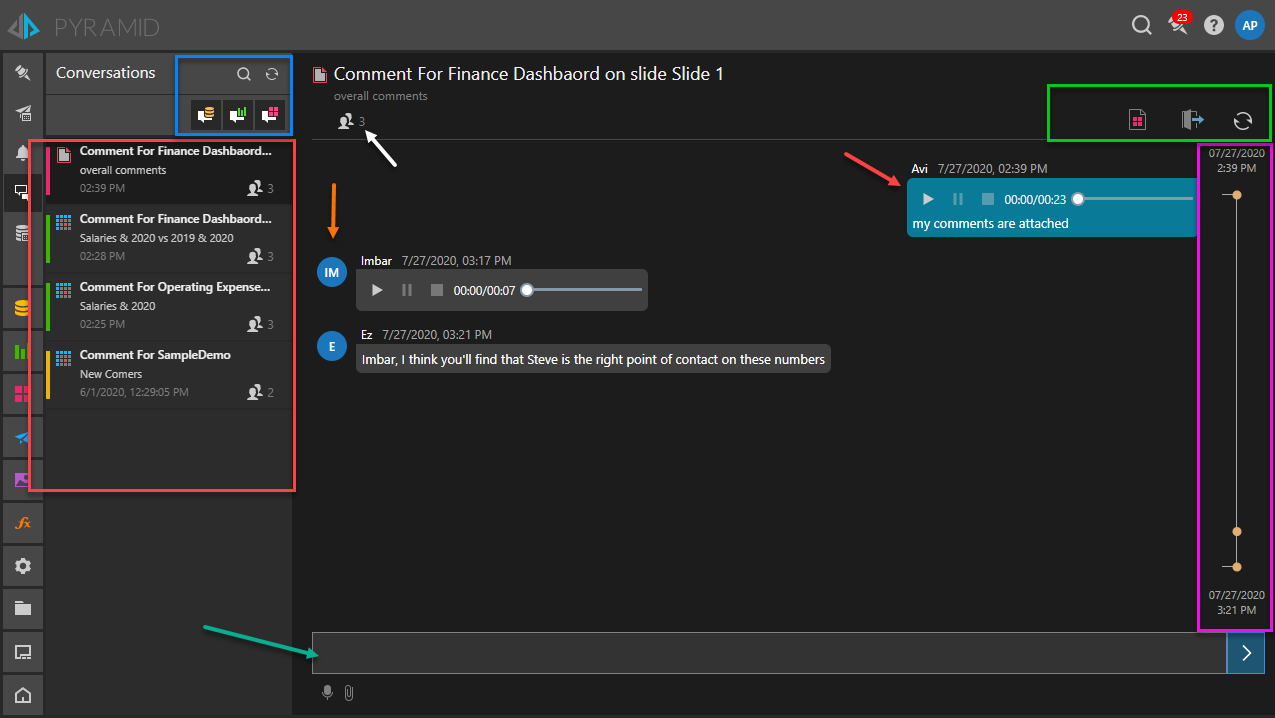
From the panel users can (blue box above):
- Search: Use the Search field to search by workflow title or description. Search will also automatically find all relevant names and descriptions of related content.
- Refresh: Refresh the list of workflows.
- Filter: Use the filter buttons to filter the workflow threads by:
- Global - Any threads that are related to a data model and not to a specific report or dashboard.
- Discover - Any threads that are related to a specific Discover report, and not to a specific dashboard or to a general data model.
- Present - Any threads that are related to a specific Present dashboard, and not to a specific report or to a general data model.
Click on a workflow item in the left-hand panel to open it and view the discussion thread (chat panel) to the right.
Discussion Thread / Chat Panel
The thread chat panel on the right shows the workflow interface.
- For custom Workflows, the interface will have been designed by a developer.
- For conversations, a classic chat format of comments written by each participant in the conversation. If the comments include audio or file attachments, they will be visible for each message on the page.
Note: Users may be represented by their full name or just their first name in the Chat panel in Conversations. This is controlled using the Conversation Username User Setting. For Viewers, this default setting is configured by the administrator. Other users can override this setting in the User Defaults.
Conversation Specifics
Write Comments
Users can write comments directly into this panel or open the underlying reporting content and comment from there (teal arrow). When writing new comments, users can include text, recorded audio (from inside the browser itself), or attach files.
To add the comment, click the Play arrow on the right.
Browser-based audio recording requires the site to be run in secured mode (HTTPS) and an operational microphone.
Comment Rating
In comment ratings are enabled, each comment in a thread can be given a rating by each participant (thumbs up or down). This can be useful to gauge who in the chat agrees or disagrees with ideas and suggestions.
Workflow Timeline
The workflow timeline (purple box above) shows entries to the thread over time. The position and size of the circles on the timeline indicates periods with more activity. Events are grouped depending on the duration of the workflow. For example, an older workflow may be grouped by days or weeks.
Timeline Interactions
Hover over a circle to see the date of the first event made in that cluster of events. Clicking on the circle will jump you to the first item in the workflow listing.
Thread Actions
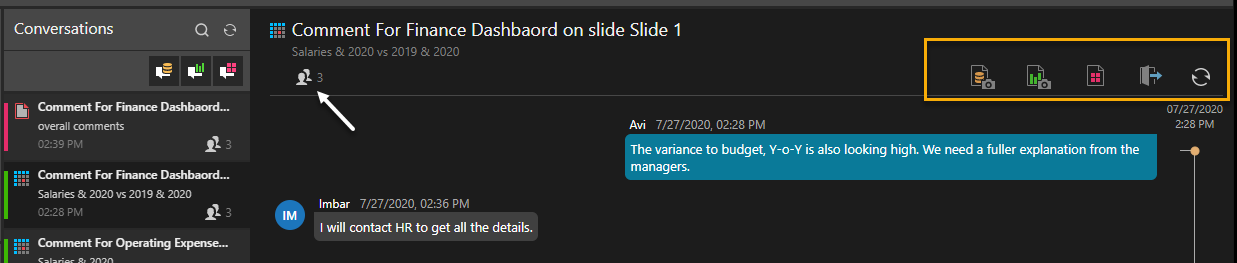
For any loaded thread, the user can perform different actions, beyond writing items (green box above and yellow box below):
- Load current Discover Report or Present Dashboard: opens the current data discovery or presentation dashboard to which the events are attached. If the workflow is global, this option is not available.
- Load Data Snapshot: open the original query results stored at the time the snapshot was taken.
- Load Discover Report Snapshot: open the original report design, with updated data.
- Edit Participants: this option allows users to add and remove participants from the thread. Click on the user icon (white arrow) to view conversation participants.